Summary sheets - new generation (beta)
In this version, you can more easily import data into a PowerPoint or Word file:
- attributes,
- hierarchical relationships,
- project roles (project team),
- data from budget, resource, indicator , and risk,
- cockpits.
summary sheet
The summary sheet brings together important information on a project, phase or milestone. It enables the user to quickly consult the information of interest, and export or print it if required.
A summary sheet contains keys that link the data in your platform to what will be entered in the sheet.
The model sheet is therefore built by calling up these keys, in a Word or PowerPoint file.
This template file is then added to the platform. See  Add a summary sheet template to the platform
Two formats are available:
- Web form
 Project
 .svg) Phase / milestone :
Phase / milestone : - is visible from various sections (project, schedule, portfolio, etc.),
- is customizable with configurable information blocks.
- The document sheet
summary sheet
 document summary sheets :
 - is in Word or PowerPoint format,
- displays information by key: attributes, hierarchical links, roles, etc.
Default settings (not available for new entries in beta version) :
- The format used can be defined in the project parameters (
 Settings - Display) or template (
 Project - General).
 - The platform configuration also lets you choose a default format (web or document) for project or milestone records.
 Global configuration - ‣
How does a summary sheet work summary sheet
The summary sheet on dynamic placeholders inserted into a Word or PowerPoint template.
These keys allow you to automatically display data from your platform in:
- a text box,
- a painting,
- an image.
Attribute Keys
Attribute keys display a unique value from a field.

attribute
Created according to need, these fields are found throughout the application, completing the description of an object. They can be used as analysis axes, report sorting and search criteria. Attributes can be of different types, such as numeric, document, list, etc. They can be mandatory or non-mandatory. They may or may not be mandatory. They can be set in the administration. Some technical attributes are inherent to the application.
Attributes categorized as technical cannot be added to an attribute group.
An attribute key attribute correspond to:
- to a attribute ,
- to a attribute ,
- to a role people assigned to a project),
- to a structure levels, values, etc.).
Key Populations
Population keys display a list of related objects.

Population
A population is what an object can hold.
For example, a project has resources, organizational relationships, and roles. These three elements are considered subclasses of the PROJECT object .
To get a list of an object's population, you must first insert a table into the PowerPoint template slide or Word template file.
A population can then be enriched with:
- an attribute,
- a filter,
- sorting,
- a subpopulation.
Key Syntax
To insert a key into the template, always use a $ monitoring :
- {CODE_ATT} : pour une clé attribut (ex. : ${CODE})
- POP: for a population key (example:$PROJECT)
Examples of use:
- ${LABEL} → displays the project labels
- $.ROLE.USER{FIRSTNAME} → displays the first names of users associated with project roles
- $CATEGORIE_INDICATEUR.PHASE.indicator.TOTAL{REP_REALISE}→ displays the completed " value completed the period of an indicator
The keys must be entered and formatted correctly for the data to be replaced automatically.
For project attributes, attachments or roles to appear in a summary sheet, they must be entered in a certain way in your template file.
Ce code doit avoir cette forme : ${CODE_ATT}, où CODE_ATT peut être :
- attribute code on the platform
 Creating a summary sheet ‣ Project information
This attribute code will be replaced by theattribute value present in your project. attribute keys can be in a text field, or contained in a table.
Creating a summary sheet ‣ Project information
This attribute code will be replaced by theattribute value present in your project. attribute keys can be in a text field, or contained in a table.
To find out theattribute code, access the list of project attributes via  Administration >
  Project.
- project role code Creating a summary sheet ‣ Project roles and users
This code will be replaced by information from the project team, such as the names of the people who have this or that role.
- code for a hierarchical structure link Creating a summary sheet ‣ Hierarchies and level values
This code will be replaced by information on your project's hierarchies, levels and hierarchical values.
The formatting of a rich text attribute is preserved as far as possible (colors, formatting), but may be slightly different. For example, images and tables are not included in new-generation summary sheets for the time being.
Template files
You can rename the labels in the app  Change my platform labels
In this guide, you'll find the standard labels used in the app. It's up to you to customize your records to match the custom labels on your platform.
Here are some sample summary sheets:
How do you create a summary sheet
Please note! All codes quoted are from an integration platform. Codes may have been modified on your platform. It's impossible to make an exhaustive list of all available attributes. What's more, there are probably attributes on your platform that you've created yourself.
Creating a summary sheet ‣ Project information
Building a " summary sheet " - Cockpits
Creating a summary sheet ‣ Project roles and users
Creating a summary sheet ‣ Hierarchies and level values
Creating a summary sheet ‣ Resources
Creating a summary sheet ‣ Budgets
Memo characters used:
$represents information that will be replaced by a value of Project Monitor.
POPrepresents a population key for displaying information about certain objects.SOUSPOPThe point allows you to target a specific subpopulation.{attribute}Braces are used to display a attribute[FILTER=1]Brackets allow you to add filters with operators;The semicolon is used as a separator to add multiple filters.COUNTallows you to count a number of values
 Project information
attribute keys
For projects, it is possible to display:
Project | ${PROJECT_NAME} |
Code | ${PROJECT_CODE} |
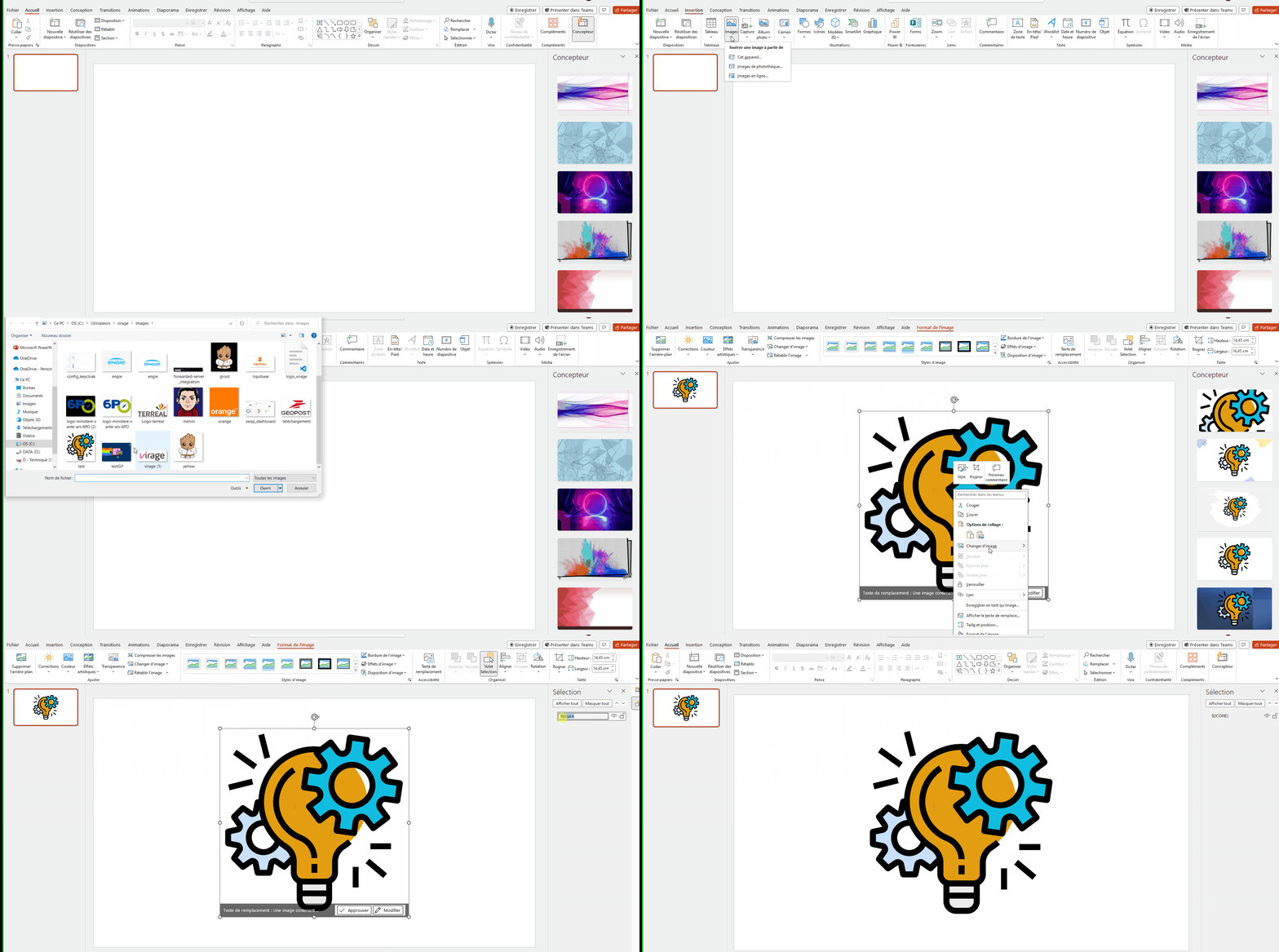
Icon | ${ICONE} |
Long label | ${LIBELLE_LONG_PROJET} |
Description | ${PROJECT_DESCRIPTION} |
status | ${status} |
Duration | From ${PROJECT_START_DATE} to ${PROJECT_END_DATE} |
Project creation date | ${PROJECT_CREATION_DATE} |
Update date | ${PROJECT_UPDATE_DATE} |
Resource scheduling date | ${DATE_RESOURCE_SCHEDULING} |
Date project closed | ${DATE_PROJECT_CLOSED} |
project manager | ${PROJECT_MANAGER} |
template | ${template} |
Father project | ${PROJET_PERE} |
Project weather | ${ATT_METEO} |
and all other created attributes that have codes.
To view different attributes assigned to a project:
- Add a table to your template file.
- Complete the table with the desired data.
Cockpits
Iconic and simple cockpits
The icon cockpits insert the "warning " icon (red/orange/green...) into the " summary sheet ," which is visible in the project header for each theme.
Simple dashboards allow you to enter detailed metric values in the project header, rather than just the iconwarning.
To insert a detailed value from an parameter into an summary sheet, use the standard syntax of the parameter with a filter by category code.
Available keys
Topic | cockpit -icon key | cockpit -Key (Single) |
Planning | COCKPIT | $COCKPIT_SIMPLE_PLANNING |
Budget | COCKPIT | $COCKPIT_SIMPLE_BUDGET |
Resource | COCKPIT | $COCKPIT_SIMPLE_RESOURCE |
task | COCKPIT | $COCKPIT_SINGLE_TASK |
risk | COCKPIT | $COCKPIT_SINGLE_RISK |
indicator | COCKPIT | $COCKPIT_SIMPLE_INDICATOR |
Example from a resource cockpit :
${COCKPIT_SIMPLE_RESOURCE[CATEGORY=CAT_JH,REP=REP_CIBLE]} : Renvoie la valeur cible de la catégorie identifiée par CODE_CATEGORIE.
The [CODE=...] filter applies to all " parameter " keys (CATEGORY_BUDGET, CATEGORY_RESOURCE, CATEGORY_INDICATOR, CATEGORY_RISK).
Filter by category
By default, the cockpit displays the consolidated alert for all categories. You can filter by a category by entering its code:
$COCKPIT[CODE=CAT_REINVOICING]
Example: Displays only the cockpit icon cockpit the CAT_REFACTURATION category .
Filter by phase type
You can restrict the cockpit planning cockpit to a phase type:
$COCKPIT[TYPE=CODE_TYPE,REP=REP_TARGET_PROGRESS]
Example: Displays the target completion rate target for phases of type CODE_TYPE.
Examples
Note: The cockpit "Planning" cockpit has neither category nor an axis; it is used only with REP and, optionally, TYPE to restrict the selection to a specific phase type.
representation | Description |
REP_PROGRESS | completed rate completed number of milestones) |
REP_PROGRESS_TARGET | target progress rate target number of milestones) |
REP_PERCENT_COMPLETION | Completion rate completed %) |
REP_PERCENT_PROGRESS_TOWARD_TARGET | target completion rate target %) |
 Project and User Roles
attribute keys
For project roles (project team), it is possible to display:
- The label text role LABEL
- role ID role ID
- role code role CODE
- role Description role DESCRIPTION
For users, it is possible to display:
- Login: LOGIN
- First name: FIRSTNAME
- Last Name: LASTNAME
- First and last name: FULLNAME
- Description: DESCRIPTION
- The function: FUNCTION
- Email: EMAIL
Population indicators
We'll use the ROLE key to retrieve the roles in your project.
The .UTILISATEUR or .USER subpopulation keys will be used to retrieve information about users with these roles.
Examples
To display the roles and users assigned to a project :
- Add a table to your template file.
- Complete the table with the desired data.
Here is an example of a configuration listing information on roles and users:
Rôle : $ROLE{LABEL} | Utilisateur : $ROLE.USER{FULLNAME} |
($ROLE{ID},$ROLE{CODE}) | ($ROLE.USER{ID},$ROLE.USER{LOGIN}) |
$ROLE{DESCRIPTION} | $ROLE.USER{FUNCTION}
$ROLE.USER{MAIL} |
 Hierarchies and level values
attribute keys
For hierarchies and level values, it is possible to display:
- The label: LABEL
- The structure identifier structure structure value ID
- structure code structure structure value CODE
- structure description structure structure value DESCRIPTION
Population indicators
Use the HIERARCHIE or HIERARCHY key to retrieve the names of the hierarchies to which your project is linked.
The .VALEUR or .VALUE subpopulation key will be used to retrieve the level values for these same hierarchies.
To display attachments for a project :
- Add a table to your template file.
- Complete the table with the desired data.
Examples
Sample file:
Here's an example of how to configure a table listing information on hierarchical links:
structure | Value |
$HIERARCHY{LABEL}$HIERARCHY{CODE} | $HIERARCHY.VALUE{LABEL}
$HIERARCHY.VALUE{CODE} |
structure Detail | Value |
$HIERARCHY{DESCRIPTION}
$HIERARCHY{ID} | $HIERARCHY.VALUE{DESCRIPTION}
$HIERARCHY.VALUE{ID} |
 Resources
This section explains how to display a project's resource data in a summary sheet or PowerPoint summary sheet .
Resource keys are used to retrieve categories, phases, resources, and their associated values: target, completed, remaining work, etc.
You can use them to:
- display the label of a category, phase resource,
- retrieve the value of a resource,
- consolidate multiple resources.
A resource key follows structure :
$CATEGORY_RESOURCE.PHASE.RESOURCE.VALUE{REPRESENTATION}
attribute keys
- {LABEL} is used to retrieve the name of a category, a phase a resource.
- {ID} is used to retrieve the ID of a category, a phase a resource.
- {CODE} lets you retrieve the code for a category, a phase a resource.
Representations
Expressions are enclosed in curly braces {} at the end of the key.
Key | Description |
{TARGET_REP} | target load target scheduling ) |
{REP_REALISE} | Work Performed |
{REP_REALISE_CUMUL} | Cumulative Expense Recognized |
{REP_RESOURCE_RAF} | remaining work ressource |
{REP_RESOURCE_RAF_DISTRIBUTED} | remaining work distributed resource |
{REP_RESOURCE_STILL_TO_BE_SCHEDULED} | Remainder of schedule |
Population indicators
The CATEGORIE_RESSOURCE key is used to access the project's resource categories.
You can then add the following subpopulations:
- .PHASE displays the phases associated with resource values.
- .RESSOURCE displays the resources.
- .VALUE retrieves the value of a single resource.
- .TOTAL returns the sum of several consolidated resources.
The order of the subpopulations must always be followed: RESOURCE_CATEGORY > PHASE > RESOURCE > VALUE or TOTAL
Examples
Sample file:
Need | Key |
category Name | $CATEGORY_RESOURCE{LABEL} |
Wording of the phase | $RESOURCE_CATEGORY.PHASE{LABEL} |
Resource Title | $RESOURCE_CATEGORY.PHASE.RESOURCE{LABEL} |
remaining work resource | $CATEGORY_RESOURCE.PHASE.RESOURCE.VALUE{REP_RESOURCE_RAF} |
Consolidated remaining work | $CATEGORY_RESOURCE.PHASE.RESOURCE.TOTAL{RESOURCE_REP_RAF} |
remaining work the period | $CATEGORY_RESOURCE.PHASE.RESOURCE.VALUE[PERIOD=0]{REP_RAF_RESOURCE} |
The period is the month. We do not go down to the week or day level.
 Budgets
This section explains how to display a project's budget data in a summary sheet or PowerPoint summary sheet .
Budgets allow you to view budget categories, phases, budget line items, and their associated values: target, completed, estimated, committed, Invoiced, etc.
You can use Budget keys Budget :
- display the name of a category ,
- display the associated budget phases and line items,
- retrieve a specific budget value,
- consolidate several budget line items,
- Display the values for a period .
The keys use the following structure:
$CATEGORY_BUDGET.PHASE.BUDGET.VALUE{REPRESENTATION}
attribute keys
- {LABEL} is used to retrieve the name of a category, a phase a budget line item.
- {ID} is used to retrieve the ID of a category, a phase a budget line item.
- {CODE} allows you to retrieve the code for a category, a phase a budget line item.
Representations
Expressions are enclosed in curly braces {} at the end of the key.
Key | representation |
{TARGET_REP} | target value target budget ) |
{REP_ENGAGE} | Committed amount |
{REP_ENGAGE_CUMUL} | Cumulative committed amount |
{ESTIMATED_REP} | Estimated value |
{REP_FACTURABLE} | Billing Amount |
{REP_FACTURABLE_CUMUL} | Cumulative billable amount |
{REP_MANDATE} | Mandated Value |
{REP_MANDATE_CUMUL} | Cumulative Mandated Value |
{REP_PLANIFIE} | Planned Value |
{REP_REALISE} | Realized value |
{REP_REALISE_APERIODIC} | Non-periodic realized value |
{REP_REALISE_CUMUL} | Cumulative Realized Value |
{REP_REFERENCE} | Reference value |
Population indicators
We will use the CATEGORIE_BUDGET key to retrieve the desired category .
Next, you can add other subpopulation keys:
- .PHASE displays the phases associated with budget values.
- .BUDGET allows you to view budget line items.
- .VALUE retrieves the value of a single budget line item.
- .TOTAL returns the sum of several consolidated budget line items.
The order of the subpopulations must always be followed:
CATEGORY_BUDGET > PHASE > BUDGET > VALUE or TOTAL
Examples
Need | Key |
category Name | $CATEGORY_BUDGET{LABEL} |
Wording of the phase | $CATEGORY_BUDGET.PHASE{LABEL} |
Budget Line Item Description | $CATEGORY_BUDGET.PHASE.BUDGET{LABEL} |
completed budget line item | $CATEGORY_BUDGET.PHASE.BUDGET.VALUE{REP_REALIZED} |
completed the period | $CATEGORY_BUDGET.PHASE.BUDGET.VALUE[PERIOD=0]{REP_REALIZED} |
target consolidated target | $CATEGORY_BUDGET.PHASE.BUDGET.TOTAL{TARGET_REP} |
Best Practices
- Use VALUE to display a value line by line.
- Use TOTAL to display a consolidated total.
- Add a PERIOD filter whenever the data depends on a period.
 Risks
Risks
This section explains how to display a project's risk data in a summary sheet or PowerPoint summary sheet .
It is possible to display the categories, phases, risks, and their associated values: probability, severity, and criticality.
You can use risk keys risk :
- display the name of a risk category ,
- display the phases and associated risks,
- retrieve a risk value,
- consolidate multiple risks,
- Display the values for a period .
The keys use the following structure:
$RISK_CATEGORY.PHASE.risk.VALUE{REPRESENTATION}
attribute keys
- {LABEL} is used to retrieve the name of a category, a phase a risk.
- {ID} is used to retrieve the ID of a category, a phase a risk.
- {CODE} allows you to retrieve the code for a category, a phase a risk.
Representations
Expressions are enclosed in curly braces {} at the end of the key.
representation | Key |
Probability | GRAVITE or GRAVITY |
Gravity | PROBABILITY |
Criticality | CRITICALITY |
Population indicators
We will use the CATEGORIE_RISQUE key to retrieve the risk category .
Next, you can add other subpopulation keys:
- .PHASE displays the phases associated with the risks.
- .risk displays the risks.
- .VALUE retrieves the value of a single risk.
The order of the subpopulations must always be followed:
RISK_CATEGORY > PHASE > risk > VALUE
Examples
Need | Key |
risk category Description | $RISK_CATEGORY{LABEL} |
Wording of the phase | $RISK_CATEGORY.PHASE{LABEL} |
risk Description | $RISK_CATEGORY.PHASE.risk{LABEL} |
Probability of risk | $CATEGORY_RISK.PHASE.risk.VALUE{SEVERITY} |
risk Severity risk period ) | $CATEGORIE_RISQUE.PHASE.risk.VALUE[PERIOD=0]{CRITICITE} |
La clé .TOTAL n'est pas applicable aux risques. Si vous insérez un champ de la forme $CATEGORIE_RISQUE.PHASE.RISQUE.TOTAL{...}, le moteur renvoie l'erreur :
The "Total" type in the "CATEGORIE_RISQUE.PHASE.risk.TOTAL" key is incompatible with the "risk" type.
To aggregate or count risks, use the COUNT function instead.
.svg) Indicators
Indicators
This section explains how to display a project's indicator data in a summary sheet or PowerPoint summary sheet .
The indicators are used to display the categories, phases, indicators, and their associated values:
You can use indicator keys indicator :
- display the label of anindicator category ,
- display the phases and associated indicators,
- retrieve aindicator value,
- consolidate several indicators,
- Display the values for a period .
The keys use the following structure:
$CATEGORY_INDICATOR.PHASE.indicator.VALUE{REPRESENTATION}
attribute keys
- {LABEL} is used to retrieve the name of a category, a phase an indicator.
- {ID} is used to retrieve the ID of a category, a phase an indicator.
- {CODE} is used to retrieve the code for a category, a phase an indicator.
Representations
Expressions are enclosed in curly braces {} at the end of the key.
representation | Description |
{TARGET_REP} | target value target indicator |
{REP_REALISE} | Realized value |
{REP_REALISE_CUMUL} | Cumulative Realized Value |
{REP_REFERENCE} | Reference value |
Population indicators
We will use the CATEGORIE_INDICATEUR key to retrieve the desired category forindicator .
Next, you can add other subpopulation keys:
- .PHASE displays the phases associated with the indicators.
- .indicator displays the indicators.
- .VALUE retrieves the value of a single indicator.
- .TOTAL returns the sum of several consolidated metrics .
The order of the subpopulations must always be followed:
INDICATOR_CATEGORY > PHASE > indicator > VALUE or TOTAL
Examples
Need | Key |
indicator category Name | $CATEGORY_INDICATOR{LABEL} |
Wording of the phase | $CATEGORY_INDICATOR.PHASE{LABEL} |
indicator Label | $CATEGORY_INDICATOR.PHASE.indicator{LABEL} |
completed the period | $CATEGORY_INDICATOR.PHASE.indicator.VALUE{REP_REALIZED} |
Reference value for the period | $CATEGORY_INDICATOR.PHASE.indicator.VALUE[PERIOD=0]{REP_REFERENCE} |
Total completed | $CATEGORY_INDICATOR.PHASE.indicator.TOTAL{REP_REALIZED} |
Best Practices
- Use VALUE to display a value indicator by indicator.
- Use TOTAL to display a consolidated total.
- Add a PERIOD filter whenever the data depends on a period.
Filters
It is possible to filter what you want to display in a list using a code/value combination.
A filter is defined as follows: It appears [in square brackets ] after the " population" key.
For example:$ROLE[CODE=ROLE1] to display all roles with a code equal to “ROLE1”
It is also possible to combine multiple filters using a semicolon (;).
For example:$ROLE[CODE=ROLE1;DESCRIPTION=CDP] to display all roles with a code equal to “ROLE1” AND a description of “CDP”.
To target a subpopulation, you can combine filters:
Par exemple : $ROLE[DESCRIPTION=Cdp].UTILISATEUR[CODE=CDP]{LABEL} pour afficher tous les libellés des rôles ayant la description “CDP” et les utilisateurs ayant le code “CDP”.
The periods
You can add a period filter period square brackets to specify the period display.
Exemple : $CATEGORIE_BUDGET.PHASE.BUDGET.VALUE[PERIOD=0]{REP_REALISE} → Cette clé renvoie le réalisé de la période en cours.
Filter | Results |
[PERIOD=0] | period |
[PERIOD=-1] | previous period |
[PERIOD=1] | next period |
[PERIOD=-1:1] | From the period to the period |
[PERIOD=--] | All the periods up to now |
[PERIOD=++] | All upcoming periods starting today |
[PERIOD=--:++] | All periods |
To display a different period, replace the value of the [PERIOD] filter with the desired offset:
- A negative value allows you to retrieve a period ,
- A positive value returns a period ,
- A range allows you to retrieve multiple time periods.
If multiple values are returned, they are displayed in the cell with a line break. The period shown in parentheses.
Filter operators
Several filter operators are available:
Equal to | = |
Different | ≠ |
Strictly less than | < |
Strictly greater than | > |
Less than or equal to | <= |
Greater than or equal to | >= |
Check for nullity | IS_NULL , IS NULL , IS WORTHLESS , EST_NULL , IS NULL , EST_NULL , =NULL, = NULL , =NULL , = NULL , = NULL , =NULL , =null, = null |
Check for non-nullity | IS_NOT_NULL, IS NOT NULL, IS NOT NULL, NOT_NULL, IS NOT NULL, NOT_NULL, =NOT_NULL, = NOT NULL, =NOT_NULL, = NOT_NULL, = NOT_NULL, =NOT_NULL, ≠null, ≠ null |
Check that a list is not empty | IS NOT EMPTY, IS NOT EMPTY, IS_NOT_EMPTY, NOT_EMPTY |
Check that a list is empty | IS EMPTY, IS EMPTY, IS_EMPTY, EST_EMPTY |
Sorting
You can set the order in which the information is displayed by adding a sort criterion based onattribute your choice.
A sort criterion is constructed as follows:
La clé population est saisie si besoin, puis un code de tri se se trouve ( entre parenthèses ) avec un caractère de sens de tri : ASC pour un ordre croissant ou DESC pour un ordre décroissant. Le code attribut est saisi ensuite { entre crochets }.
Par exemple : $HIERARCHIE.VALUE(CODE ASC){LABEL} permet de trier les libellés des valeurs de hiérarchie par code croissant.
Example | Description |
${PROJECT_NAME} | Displays project names sorted by name in ascending order ( ASC). The sort direction is optional here: if no direction is specified, the default sort order is ascending. |
$(ASC CODE){PROJECT_NAME} | Displays project names sorted by code in ascending order ( ASC) |
$(CODE){PROJECT_NAME} | Displays project names sorted by code in ascending order ( ASC). The sort direction is optional here: if no direction is specified, the default sort order is ascending. |
$(CODE DESC){PROJECT_NAME} | Displays project names sorted by code, in descending order ( DESC) |
$(START_DATE ASC){status} | Displays project statuses sorted by project start date in ascending order ( ASC) |
$(CODE){PROJECT_MANAGER} | Displays the names of the project managers for the project, sorted by project code in ascending order ( ASC). The sort direction is optional here: if no direction is specified, the default sort order is ascending. |
$HIERARCHY(CODE){LABEL} | Displays the labels of the hierarchies associated with the project, sorted by code in ascending order ( ASC). The sort direction is optional here: if no direction is specified, the default sort order is ascending. |
Default Sorting Rules
- If no sort criteria are specified, the sort is performed as follows:
- on the label (LABEL) for all items,
- except for users, in which case it will be their name (FULLNAME).
- The sort direction is specified using ASC or DESC. If no direction is specified, the order will be ascending ( ASC).
Loops
summary sheet Loop
You can generate a comprehensive overview of a project while preserving its original structure. Each child element (budget, resource, indicator, risk) can be displayed on a slide or in a dedicated section, allowing you to clearly distinguish between different types of information.
Principle
To automate the display, you need to insert a loop into the slide (or section, in Word) using a specific code.
Par exemple, <BOUCLE$CATEGORIE_BUDGET> permet de démarrer une boucle sur les catégories de budget du projet.
- This code will not appear on the summary sheet .
- It acts as break : the slide (or section) will be duplicated as many times as there are elements in the target population.
- Each slide generated will display information for a single item (for example: a single category, a single indicator, etc.).
So, if budget 3 budget categories in your project, 3 slides will be displayed, each corresponding to a category.
Buckle Closure
Chaque boucle doit être fermée avec, par exemple, <END$CATEGORIE_BUDGET>. Chaque fin de boucle doit reprendre la même syntaxe que le code de début de boucle.
Nested Loops
You can combine loops with other population types to generate one slide per subelement (by phase, by budget line item, by indicator of a phase, etc.).
Examples of available loops
Start of the loop | End of loop | Description |
<BOUCLE$CATEGORIE_BUDGET> | <END$CATEGORIE_BUDGET> | Generates a slide for each budget category budget project. |
<BOUCLE$CATEGORIE_RESSOURCE> | <END$CATEGORIE_RESSOURCE> | Generates a slide for each category . |
<BOUCLE$CATEGORIE_INDICATEUR> | <END$CATEGORIE_INDICATEUR> | Generates one slide for each category . |
<BOUCLE$CATEGORIE_RISQUE> | <END$CATEGORIE_RISQUE> | Generates a slide for each category . |
Sample file:
Meters
Counters are used to display key figures in a summary sheet.
They use a dedicated key starting with$COUNT and allow you to count objects (budget, resource, etc.), with or without filters.
Syntax
$COUNT.OBJECT{attribute} $COUNT.OBJECT[FILTER=value]{attribute} $COUNT.OBJECT[FILTER=value1,value2]{attribute}
- OBJECT — the type of object to be counted (BUDGET, RESOURCE, indicator, risk).
- [FILTER=value] — (optional) one or more filters to restrict the count. Multiple values can be listed, separated by commas.
- {attribute} —attribute display. For a counter, use {LABEL}, which returns the number of matching objects.
Meter without a filter
- $COUNT.BUDGET{LABEL} → total number of budgets
- $COUNT.RESOURCE{LABEL} → total number of resources
- $COUNT.indicator{LABEL} → total number of indicators
- $COUNT.risk{LABEL} → total number of risks
Meter with filter
To count only some of the items, add one or more filters enclosed in square brackets [ ].
For a complete list of available filters and their syntax, see the page Creating a summary sheet Filters.
- $COUNT.RESOURCE[CATEGORY=JH]{LABEL} → Number of resources with the category JH.
- $COUNT.risk[RISK_TYPE=FINANCIAL_RISK]{LABEL} → Number of risks whose type is CAT_FINANCIAL_RISK.
- $COUNT.BUDGET[ANALYTICAL_AXIS=CLASS_1,CLASS_2]{LABEL} → Number of budgets linked to the analytical axis CLASS_1 or CLASS_2.
Filters Available by Object
Subject | Filter Name | Filter code |
BUDGET | Type | MOD_BUDGET_GENRE |
Analytical axis | ANALYTICAL AXIS | |
category | CATEGORY | |
RESOURCE | Type | MOD_RESOURCE_GENRE |
Generic Resources | CREDITS | |
Profile | PROFILE | |
category | CATEGORY | |
indicator | Type | MOD_GENDER_INDICATOR |
category | CATEGORY | |
risk | Type | GENDER_RISK_MODEL |
category | CATEGORY |
The allowed values for each filter (e.g., JH, CAT_FINANCIAL_RISK, CLASS_1) are specific to each platform and depend on your settings Project Monitor. To create your own merge fields, use the category codes, representations, and analytical axes configured on your platform.